How to use Replit for Windows in your workflow

Replit for Windows is a browser-based way to write, run, and review code from a Windows computer. This guide shows where it fits beside your existing tools, what to expect from the handoff, and which limits to plan around.

The audience's existing pipeline

Most Windows developers already move through a familiar loop: choose an editor, create or open a project, run code locally, inspect the result, then share the next version. Replit can sit inside that loop without requiring you to replace every tool at once.

Where we slot in

A Windows browser is the access point, not a promise that every local development habit disappears. Replit is most useful when you want a shareable workspace, a quick way to inspect code, or a project that can be reached from more than one machine.

It is not a native Windows IDE

The main experience runs in a browser, so it does not behave exactly like a locally installed Windows editor with deep operating-system integration.

Workaround

Keep your preferred desktop editor for tasks that depend on local extensions, native menus, or heavy machine-level tooling.
Local files are not automatically the project

A folder on your Windows drive and a project in Replit are separate places unless you deliberately move or connect the work.

Workaround

Decide at the start whether the source of truth is local or hosted, then import or copy changes intentionally.

Internet access still matters

A browser workspace depends on a reliable connection for opening projects, saving changes, and using hosted development features.

Workaround

Use a local editor for offline work and return to Replit when you are connected.

Windows-specific software may not translate

Code that depends on a particular Windows service, desktop application, driver, or path convention may need adjustment in a hosted environment.

Workaround

Separate portable application logic from operating-system integrations and test those integrations on Windows itself.

Before and after

The handoff is easiest when you treat Replit as a deliberate stage in the pipeline rather than an unexplained replacement for your Windows setup.

  1. 1

    Choose the working location

    Decide whether the project begins in Replit or on your Windows computer, and identify which files, settings, and dependencies the next stage needs.

  2. 2

    Run the smallest useful check

    Open the project in the browser, make a focused change, and run or preview the relevant part before moving more of the workflow across.

  3. 3

    Share or continue locally

    Use the browser workspace for collaboration and review, or return to Windows when the task depends on local software, files, or system access.

Deliverable spec

This comparison keeps the boundary clear: Replit and a Windows desktop setup can support the same project while serving different stages of the work.

Replit in a Windows browser
Local Windows workflow

Access

Replit in a Windows browser

Open the workspace from a supported browser on Windows.

Local Windows workflow

Launch an installed editor and local development tools.

Project location

Replit in a Windows browser

Work in a hosted project workspace.

Local Windows workflow

Work with files stored on the Windows computer or a connected drive.

Best fit

Replit in a Windows browser

Sharing, review, quick experiments, and browser-accessible projects.

Local Windows workflow

Offline work, local services, and operating-system-specific development.

Execution

Replit in a Windows browser

Run or preview code through the hosted workspace where supported.

Local Windows workflow

Run code against locally installed runtimes, packages, and services.

Collaboration

Replit in a Windows browser

Share a common workspace or project context through the browser.

Local Windows workflow

Exchange files, repositories, or local setup instructions with collaborators.

Windows integration

Replit in a Windows browser

Limited to what the browser and hosted workspace can access.

Local Windows workflow

Direct access to local paths, applications, devices, and Windows configuration.

Handoff

Replit in a Windows browser

Useful as a reviewable or accessible project stage.

Local Windows workflow

Useful as the source environment for local testing and system-level checks.

Before/after

The practical change is not simply moving code from one screen to another. It is turning a machine-bound step into a browser-accessible project stage, while keeping Windows available for work that truly needs it.

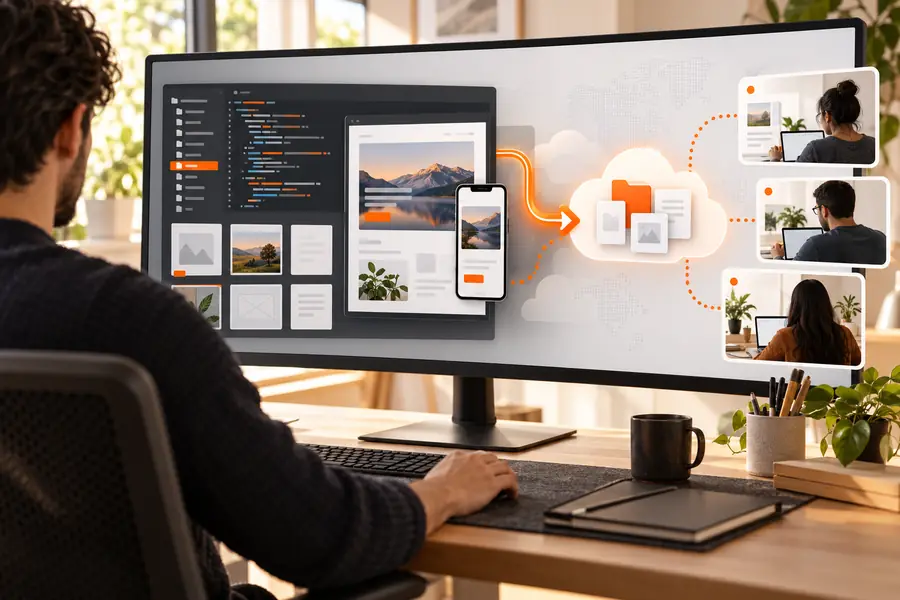
A Windows browser workflow before moving a project into a shared workspace Before: local-first handoff
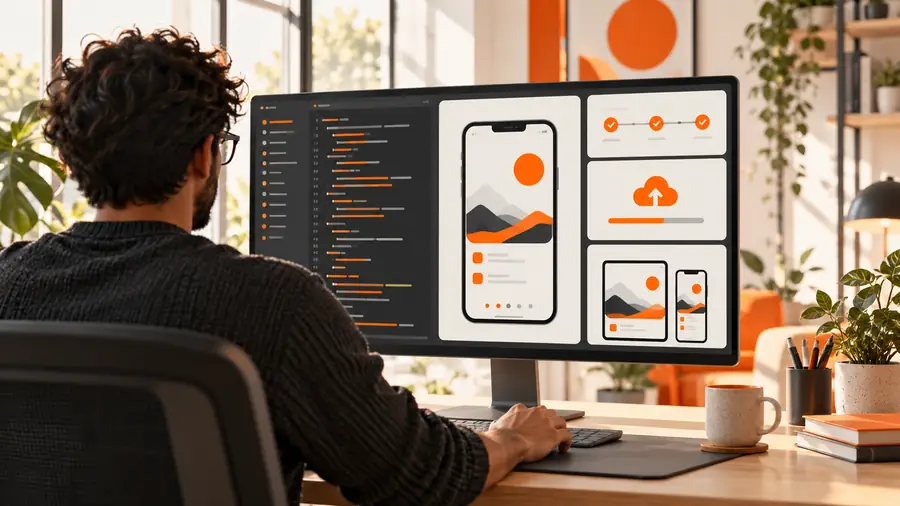
A browser coding workflow after the project is ready to review After: browser-accessible project
Use the browser stage for access and review; keep local Windows tools for system-specific checks.

Scenario FAQ

Different Windows users bring different starting points. These examples show where the browser workspace can be useful without overstating what it replaces.

The student on a shared PC

You need to open a coding project from a Windows computer that is not your primary machine.

A browser-accessible workspace can make the project easier to reach without rebuilding the whole local setup.

replit free for students

The beginner learning Python

You want to practice short programs while keeping the setup burden manageable on Windows.

A focused browser workflow can let you spend more time reading, changing, and testing code.

replit python

The reviewer or mentor

You need to inspect a project from Windows and give feedback without matching every local dependency.

A shared project context can make review more direct than exchanging screenshots or incomplete folders.

replit online editor

The local power user

You already use Windows tools but want a browser-based place for experiments, demos, or a second working view.

Replit can complement the desktop workflow when portability and sharing matter more than deep local integration.

replit examples

Choose the right Windows handoff

Keep your workflow flexible

Use Replit when a browser-accessible project, quick review, or shared workspace fits the job. Keep your Windows tools close for offline work, local services, and software that depends on the operating system.

Open Replit
  • Start with one small project or focused change.
  • Keep local Windows testing for system-specific behavior.
  • Move more of the workflow only when the handoff is clear.

Scenario FAQ

Yes. Replit can be accessed from a browser on a Windows computer, making it suitable for browser-based coding, project review, and sharing. The exact experience depends on the browser, project, and features being used.

The core workspace is accessed through the web, so you can begin from a Windows browser rather than treating it like a traditional installed desktop editor. You may still use local Windows software alongside it when a project requires native tools or system access.

No. Replit provides a hosted, browser-accessible development workspace, while a Windows code editor works directly with local files and installed tools. They can complement each other when local integration and browser access serve different stages of the project.

It can be a poor fit for code that depends on Windows-only applications, drivers, local paths, or other machine-level services. Test those parts on Windows itself, and use the browser workspace for portable logic or collaboration where appropriate.

You may be able to bring project files into a hosted workspace, but the project may need adjustments for dependencies, paths, environment variables, and services. Start with a small copy or a focused part of the application before moving the full workflow.

Start creating
Start creating